
Configure Browser Caching: Boost Website Speed & Core Web Vitals
To configure browser caching effectively, this guide details implementing rules for static assets like CSS, JavaScript, and images. Learning to configure browser caching directly improves website performance, enhances Core Web Vitals, and optimizes user experience. It covers Cache-Control directives, Expires headers, and ETags, with practical examples for .htaccess (Apache) and Nginx configurations. Strategic caching reduces server load and the “Cost of Retrieval” for search engine crawlers, particularly beneficial for high-resolution medical imagery and overall site speed.
Abdurrahman Şimşek, a Semantic SEO Strategist, emphasizes that optimizing technical aspects like browser caching is crucial for holistic SEO. His expertise in semantic engineering and web development ensures performance strategies align with search engine requirements, particularly for specialized medical and plastic surgery websites.
To explore your options, contact us to schedule your consultation. You can also reach us via: Book a Semantic SEO Audit, Direct WhatsApp Strategy Line: +90 506 206 86 86
Configuring browser caching is fundamental to optimizing website performance for user experience and search engine rankings. This guide explains implementing browser caching rules for static assets like logos, CSS, and JavaScript to make your medical website load quickly. Storing frequently accessed files on a user’s device makes subsequent visits faster, improving Core Web Vitals and the browsing experience for your patients.
What is Browser Caching and Why is it Crucial for Website Performance?
Browser caching stores copies of static website files, such as images, CSS stylesheets, and JavaScript files, on a user’s device. This reduces server requests on subsequent visits. When a user revisits a page, the browser loads these cached assets from local storage, resulting in faster page load times.
This makes websites feel more responsive. Fast loading times are a critical ranking factor for search engines, which prioritize Core Web Vitals like Largest Contentful Paint (LCP) and First Input Delay (FID). Efficient caching reduces the “Cost of Retrieval” for search engine crawlers, allowing them to index more content without excessive server load. For medical websites, where patient trust and immediate information access are paramount, optimizing advanced caching and CDN strategies is foundational to user satisfaction and SEO success.
Understanding Cache-Control, Expires Headers, and ETags
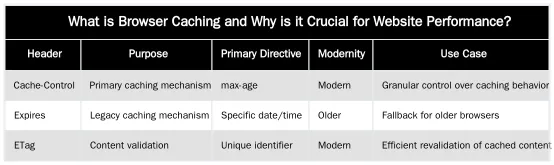
Browser caching relies on HTTP headers that instruct browsers how to store and manage cached content. The three primary mechanisms are Cache-Control, Expires headers, and ETags. Each dictates caching behavior, from setting maximum age limits to validating content freshness.
Cache-Control Directives: Granular Control Over Caching
The Cache-Control header is the most flexible way to manage browser caching. It uses directives for granular control. For instance, max-age specifies the maximum time (in seconds) a resource is considered fresh. no-cache requires the browser to revalidate with the server before using a cached copy, while no-store forbids caching. The public directive indicates any cache can store the response, whereas private means only the user’s browser can cache it, which is suitable for personalized content.
Expires Headers vs. ETags: When and How to Use Them
Expires headers are an older, date-based caching mechanism specifying a date and time after which a resource is stale. Cache-Control‘s max-age directive takes precedence, but Expires is supported for backward compatibility. ETags (Entity Tags) are unique identifiers assigned by the server to a resource version. When a browser requests a cached resource, it sends the ETag to the server. The server compares this ETag with the current version. If they match, the server responds with a “304 Not Modified” status, indicating the cached version is valid and saving bandwidth by avoiding a re-download.
Practical Implementation: Configuring Caching Rules for Static Assets
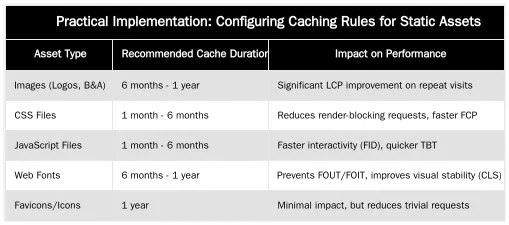
Implementing caching rules for static assets like CSS, JavaScript, images, and fonts is critical for website optimization. The method varies by web server. This section provides guides for Apache and Nginx, the most common web servers.
Configuring Apache with .htaccess for Optimal Caching
On Apache servers, caching rules are managed in the .htaccess file, usually in the website’s root directory. This requires enabling the mod_expires and mod_headers modules. Use ExpiresByType directives to set expiry times for different file types and Header set Cache-Control to control caching behavior. Images and fonts can be cached longer than CSS or JavaScript, which are updated more frequently.
<IfModule mod_expires.c>
  ExpiresActive On
  ExpiresDefault "access plus 1 month"
ExpiresByType image/jpeg "access plus 1 year"
ExpiresByType image/gif "access plus 1 year"
ExpiresByType image/png "access plus 1 year"
ExpiresByType image/webp "access plus 1 year"
ExpiresByType image/svg+xml "access plus 1 year"
ExpiresByType text/css "access plus 1 month"
ExpiresByType application/javascript "access plus 1 month"
ExpiresByType application/x-font-woff "access plus 1 year"
ExpiresByType application/font-woff2 "access plus 1 year"
ExpiresByType application/vnd.ms-fontobject "access plus 1 year"
ExpiresByType font/ttf "access plus 1 year"
ExpiresByType font/otf "access plus 1 year"
</IfModule><IfModule mod_headers.c>
<filesMatch ".(ico|pdf|flv|jpg|jpeg|png|gif|webp|svg|js|css|swf|woff|woff2|ttf|otf)$">
Header set Cache-Control "max-age=2592000, public"
</filesMatch>
</IfModule>
This configuration sets a default cache expiry of one month and extends it to one year for images and fonts, while CSS and JavaScript are cached for one month. The Cache-Control header reinforces these directives, marking assets as public and setting a maximum age in seconds (2592000 seconds = 30 days).
Setting Up Nginx Caching Directives for Speed
Nginx configures caching rules with a different syntax, typically in server or location blocks. The expires directive sets cache duration, and add_header Cache-Control specifies caching policies. This allows precise control over how different types of static assets are handled.
location ~* .(jpg|jpeg|gif|png|webp|svg|ico|css|js|woff|woff2|ttf|otf)$ {
  expires 30d;
  add_header Cache-Control "public, no-transform";
}
This Nginx configuration caches common static file types for 30 days. The add_header Cache-Control directive marks assets as public and prevents intermediate proxies from modifying them. For more specific control, create separate location blocks for different file types to vary caching durations based on asset volatility.
Beyond Basics: Advanced Caching for Medical Websites & Cost of Retrieval
For medical websites, such as those for plastic surgeons and aesthetic clinics in London, advanced caching strategies optimize the “Cost of Retrieval,” not just speed. Abdurrahman Şimşek’s methodology states every server request and byte transferred contributes to this cost, impacting server resources and search engine crawl efficiency. Strategic caching reduces this cost, enhancing performance and supporting E-E-A-T (Expertise, Experience, Authoritativeness, Trustworthiness) by providing a fast, reliable user experience.
Medical websites often have extensive static assets: high-resolution “before and after” image galleries, anatomical diagrams, and JavaScript applications for patient education. These assets are resource-intensive but essential for conveying expertise and building trust. Efficient caching ensures these elements load quickly on repeat visits for patients researching procedures or viewing testimonials.
Optimizing High-Resolution Medical Imagery for LCP
High-resolution images, especially in “before and after” galleries, are often the Largest Contentful Paint (LCP) element on a medical procedure page. Image optimization (compression, correct sizing, modern formats like WebP) is crucial, and caching ensures that once an image is downloaded, it is not re-downloaded. Setting long cache expiry times for these static image assets directly improves LCP scores on subsequent page loads. This is important for clinics showcasing detailed surgical results where image quality cannot be compromised, making caching a vital performance tool.
Reducing Server Load and Enhancing Crawl Budget with Smart Caching
Each static asset request consumes server resources. Browser caching drastically reduces these requests, freeing server capacity. Reduced server load improves site stability, especially during peak traffic. Fewer static asset requests allow search engine crawlers like Googlebot to allocate more crawl budget to indexing dynamic content, such as new procedure descriptions, surgeon bios, or patient testimonials. This targeted crawling reduces the reducing ‘Cost of Retrieval’ for search engines, letting them efficiently process your site’s most important parts. Google provides guidance on leveraging browser caching for performance.
Measuring Impact: How Caching Boosts Core Web Vitals and PageSpeed Scores
Configured browser caching improves key performance metrics, including Google’s Core Web Vitals and PageSpeed Insights scores. These metrics are crucial for SEO because they reflect user experience. By reducing server requests and data transfer, caching improves loading speed, responsiveness, and visual stability.
Interpreting PageSpeed Insights for Caching Opportunities
Google PageSpeed Insights is a primary tool for identifying caching opportunities. Audits often yield recommendations like “Serve static assets with an efficient cache policy” or “Leverage browser caching,” which indicate a missing or suboptimal caching setup. The tool highlights resources that would benefit from longer cache durations, pinpointing where to adjust server configurations. Addressing these recommendations improves performance scores and Core Web Vitals.
Monitoring Performance Post-Implementation: Tools and Metrics
After implementing caching rules, monitor their impact. Google Lighthouse (integrated into Chrome DevTools) provides detailed performance reports, including LCP, FID, and CLS metrics. Use the Network tab in Chrome DevTools to verify assets are served from the browser cache (indicated by “disk cache” or “memory cache”). Regularly checking the Core Web Vitals report in Google Search Console and using Google Analytics to track page load times confirms the positive effects of your caching strategy. Understanding these metrics ensures your website provides an optimal experience, aligning with Google’s Core Web Vitals guidelines.
Future-Proof Your Site: Strategic Caching for Long-Term SEO Success
A caching strategy is foundational for sustained SEO performance and user trust, not just immediate speed gains. For YMYL (Your Money Your Life) websites, such as medical clinics, E-E-A-T is paramount. A fast, reliable website signals trustworthiness and professionalism to users and search engines. Strategic caching provides a consistent user experience, which can lower bounce rates, increase engagement, and improve conversion rates.
Integrating caching into a technical SEO framework helps build algorithm-proof websites. Performance and user experience remain priorities as search engine algorithms evolve. Managing asset delivery reduces dependency on network conditions and server response times, creating a more resilient online presence. This is crucial as factors like AI Overviews and technical SEO reshape search results. Abdurrahman Şimşek’s approach emphasizes these technical elements for long-term semantic SEO success.
Ready to Optimize Your Medical Website’s Performance?
Implementing and maintaining a caching strategy requires technical expertise in web performance. For London plastic surgeons, aesthetic clinic owners, and medical directors, a high-performing website is non-negotiable for patient acquisition and reputation. Expert assistance can enhance your site’s speed, improve Core Web Vitals, and strengthen your technical SEO framework. Abdurrahman Şimşek specializes in semantic SEO and web development for medical clinics to achieve high performance and search visibility.
Conclusion
Browser caching enhances website performance, influencing user experience and search engine rankings. Implementing Cache-Control, Expires headers, and ETags reduces page load times for static assets. This optimization improves Core Web Vitals and PageSpeed scores and lowers the “Cost of Retrieval” for search engines, which is vital for medical websites with extensive imagery. A well-executed caching strategy is a cornerstone of a technical SEO framework, building trust and authority for your medical practice online. To ensure your medical website performs at its peak and dominates local organic search in London, contact us today. You can also Book a Semantic SEO Audit or reach out directly via WhatsApp Strategy Line: +90 506 206 86 86.
Frequently Asked Questions
What is the primary goal when you configure browser caching for a website?
The primary goal is to instruct a visitor’s web browser to store static files—like your logo, CSS stylesheets, and JavaScript files—locally on their device. When you configure browser caching, it ensures that on subsequent visits, the browser doesn’t need to re-download these files from your server, making the page load almost instantly and improving the patient experience.
How do I configure browser caching rules for my website’s static assets?
You can configure browser caching by adding specific directives to your server’s configuration file. For Apache servers, this is typically the `.htaccess` file, where you use `Expires` or `Cache-Control` headers. Nginx servers utilize the `expires` directive within their server block configuration to manage asset retention.
What is a recommended cache duration for a clinic’s logo or main CSS file?
For static assets that rarely change, such as a clinic’s logo, brand font, or core CSS file, a long cache duration of up to one year is highly recommended. This can be achieved using the `Cache-Control: max-age=31536000` header, which signals to the browser to store the file for a full year, significantly speeding up repeat visits.
How can I ensure updates to my CSS or JavaScript files are seen immediately, even with long caching periods?
This common concern is addressed using a technique called “cache busting.” When you update a CSS or JavaScript file, you simply change its filename slightly (e.g., `style-v2.css` or `style.css?ver=1.1`). The browser then perceives this as a new, unique file and is forced to download the updated version, bypassing any previously cached content.
How does effective browser caching contribute to better Core Web Vitals scores for medical websites?
Proper browser caching has a significant positive impact on Core Web Vitals, especially for repeat visitors. By loading assets directly from the local cache, the browser can render the page much faster, drastically improving metrics like Largest Contentful Paint (LCP) and First Input Delay (FID). This leads to a smoother, more responsive experience for patients accessing critical medical information.
Why is it crucial for medical clinics to configure browser caching for optimal patient experience?
For medical clinics, a fast-loading website is paramount for patient trust and accessibility. When you configure browser caching effectively, it ensures that returning patients experience near-instant page loads, reducing frustration and improving their ability to access appointment booking, contact information, or health resources quickly. This directly enhances user satisfaction and supports the clinic’s online presence.
Ruxi Data brings together multi-model AI, automated website crawling, live indexation checks, topical authority mapping, E-E-A-T enrichment, schema generation, and full pipeline automation — from crawl to WordPress publish to social posting — all in one platform built for agencies and freelancers who run on results.